TEMPLATES
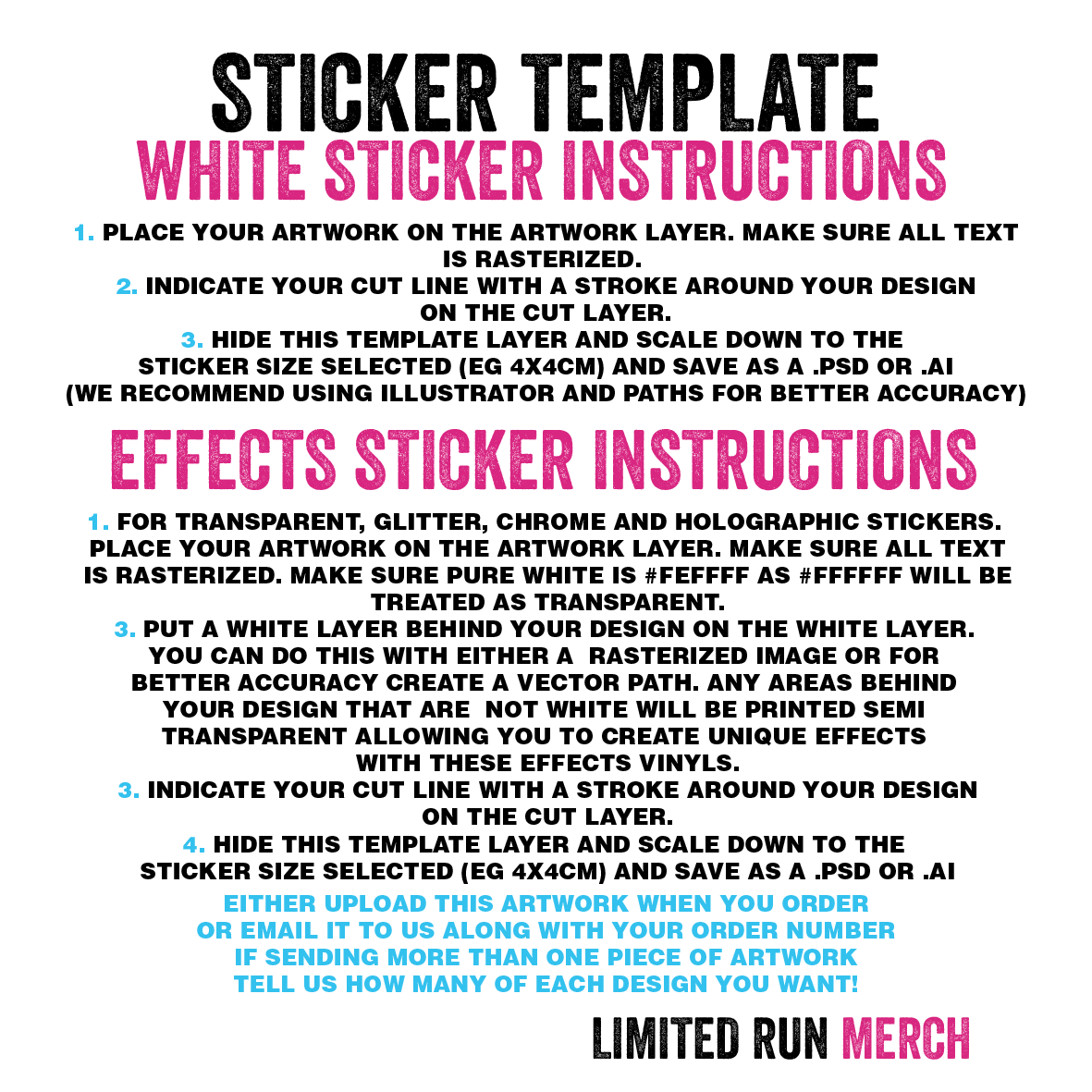
Sticker Template
PHOTOSHOP TEMPLATE
PHOTOSHOP DETAILED INSTRUCTIONS
PNG TEMPLATE
ILLUSTRATOR TEMPLATE
ILLUSTRATOR DETAILED INSTRUCTIONS
(See how to design your stickers)

Face Mask Template
MORE COMING SOON
T-Shirt Template
Coming Soon
Travel Mug Template
Coming Soon
Tea Towel Template
Coming Soon
Sticker Sheet Template
PHOTOSHOP TEMPLATE
PHOTOSHOP DETAILED INSTRUCTIONS
PNG TEMPLATE
ILLUSTRATOR TEMPLATE
ILLUSTRATOR DETAILED INSTRUCTIONS
(See how to design your stickers)
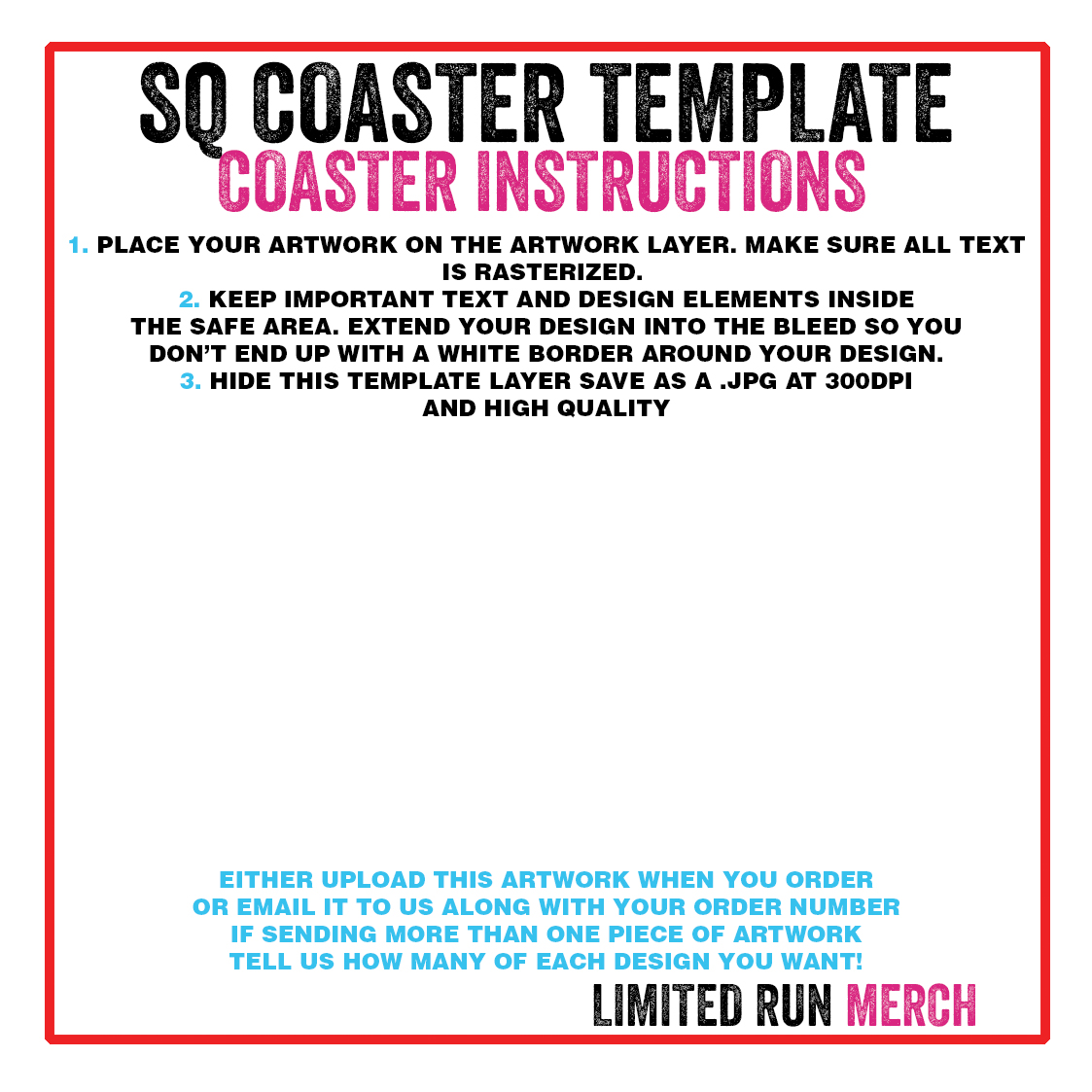
Coaster Template
MORE COMING SOON
Chopping Board Template
Coming Soon
Wash Bags Template
Coming Soon
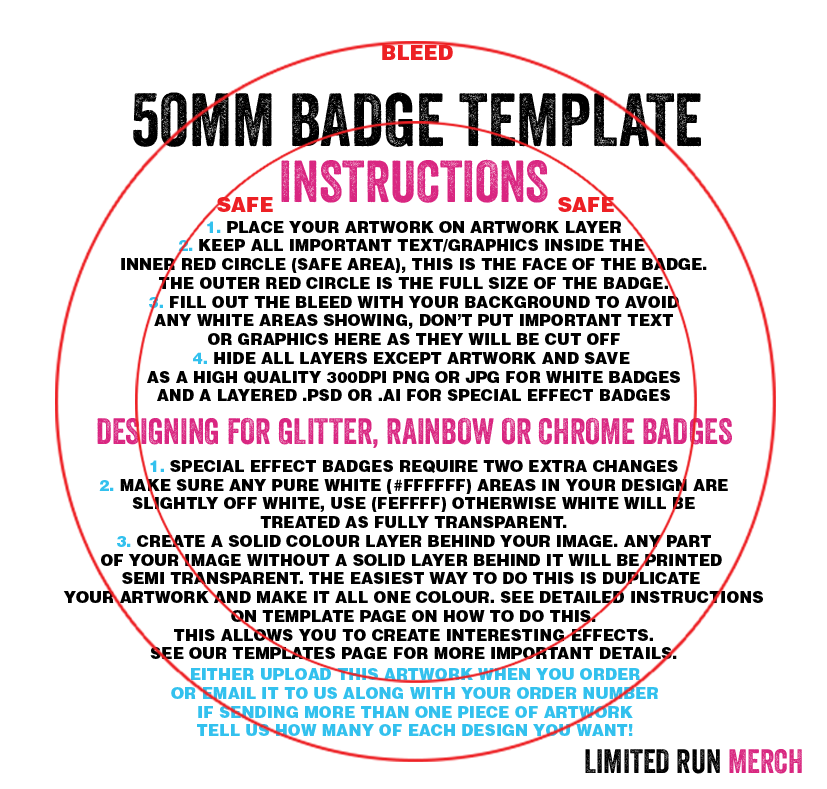
50mm Badge Template
PHOTOSHOP TEMPLATE
PHOTOSHOP DETAILED INSTRUCTIONS
PNG TEMPLATE
ILLUSTRATOR TEMPLATE
ILLUSTRATOR DETAILED INSTRUCTIONS
(See how to design your stickers)
Tote Bag Template
MORE COMING SOON
Mouse Mat Template
Coming Soon
Greeting Card Template
Coming Soon
Art Prints Template
Coming Soon
TEMPLATE TIPS
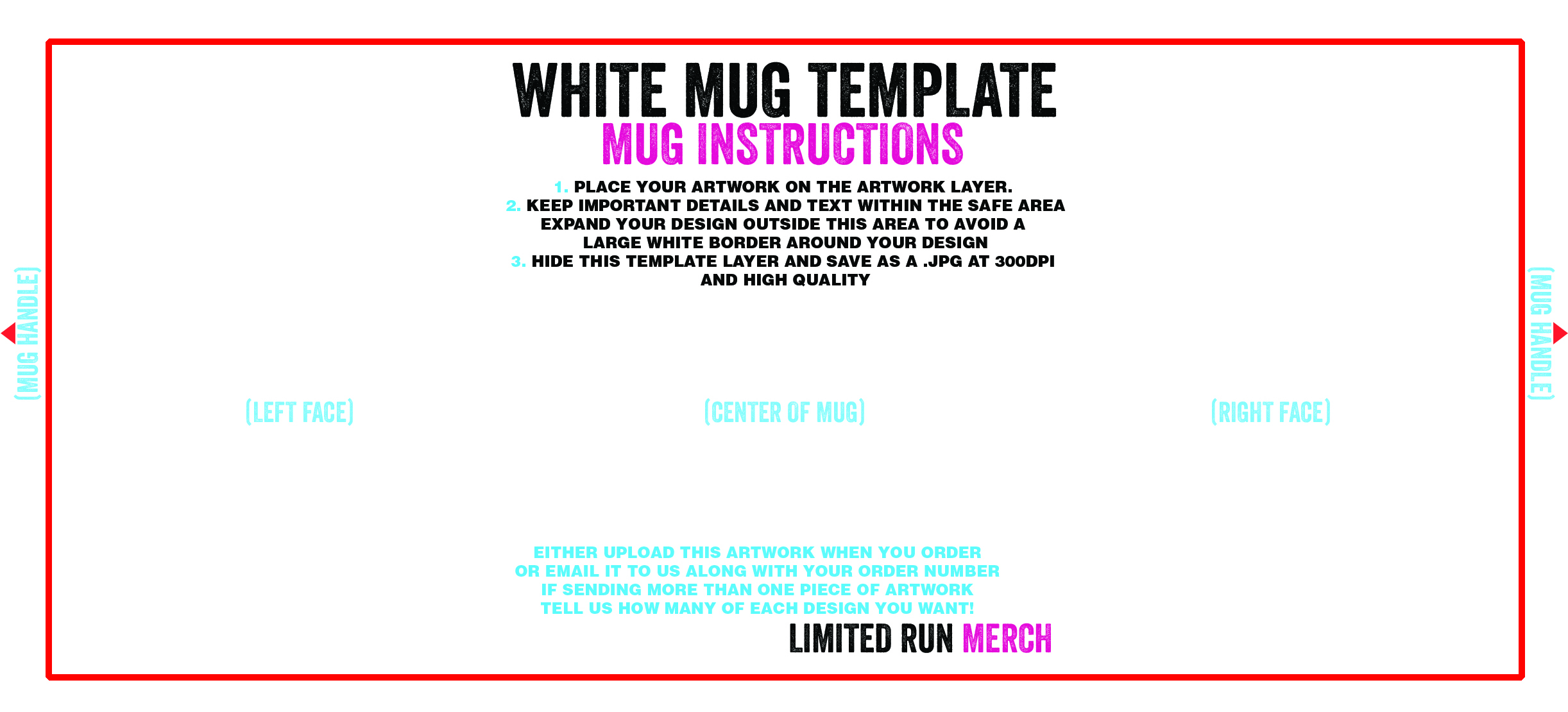
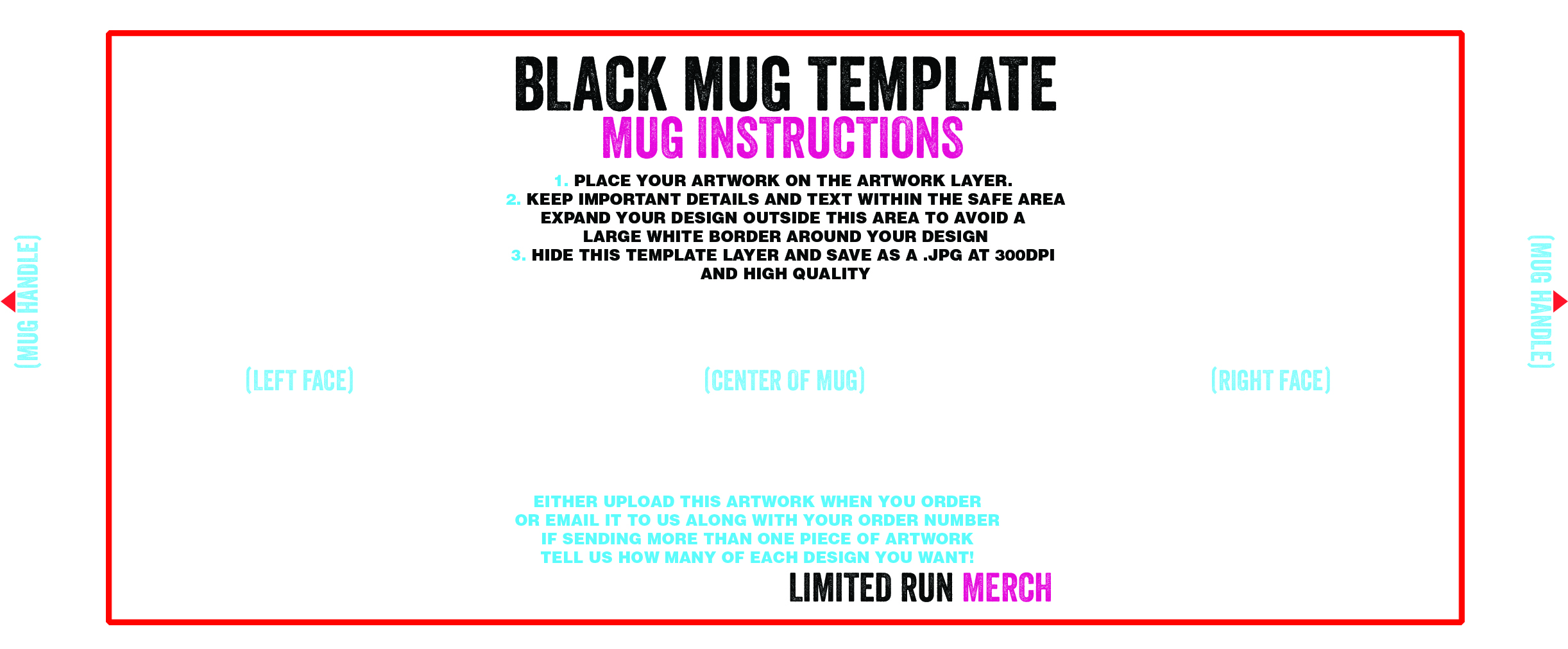
1. Download either our photoshop or png template depending on your preference.

2. Add your designs on top of the template making sure to be aware of the red guidelines. Make sure you follow the instructions included with the template.

3. The red guidelines are where your important graphics and text should be. If they are outside of the red guidelines then they may get cut off.

4. Make sure your graphics go all the way to edge of the template. This is called bleed and so means when your design is cropped to size there is no white gaps.

5. Be aware colours you see on screen may look different once printed. Florescent pinks for example will come out duller.

6. Make sure you save your file at a resolution of 300 dpi. Do not change the size of the template.

7. Save your file as a high quality PSD, PDF, PNG or JPG. If designing for transparent objects or objects with a coloured background then always save as a PSD or PNG with transparent background enabled.

If you have any other questions on how to get your artwork perfect then feel free to contact us.